Email invitations
When you share a course, you can email a direct link straight to your learners. They don't need a login, and you can add your own message.
When you share a course, you can send an email invitation with a direct link to access it. It's optional, and recipients don't need an account, they click the link and go straight in.
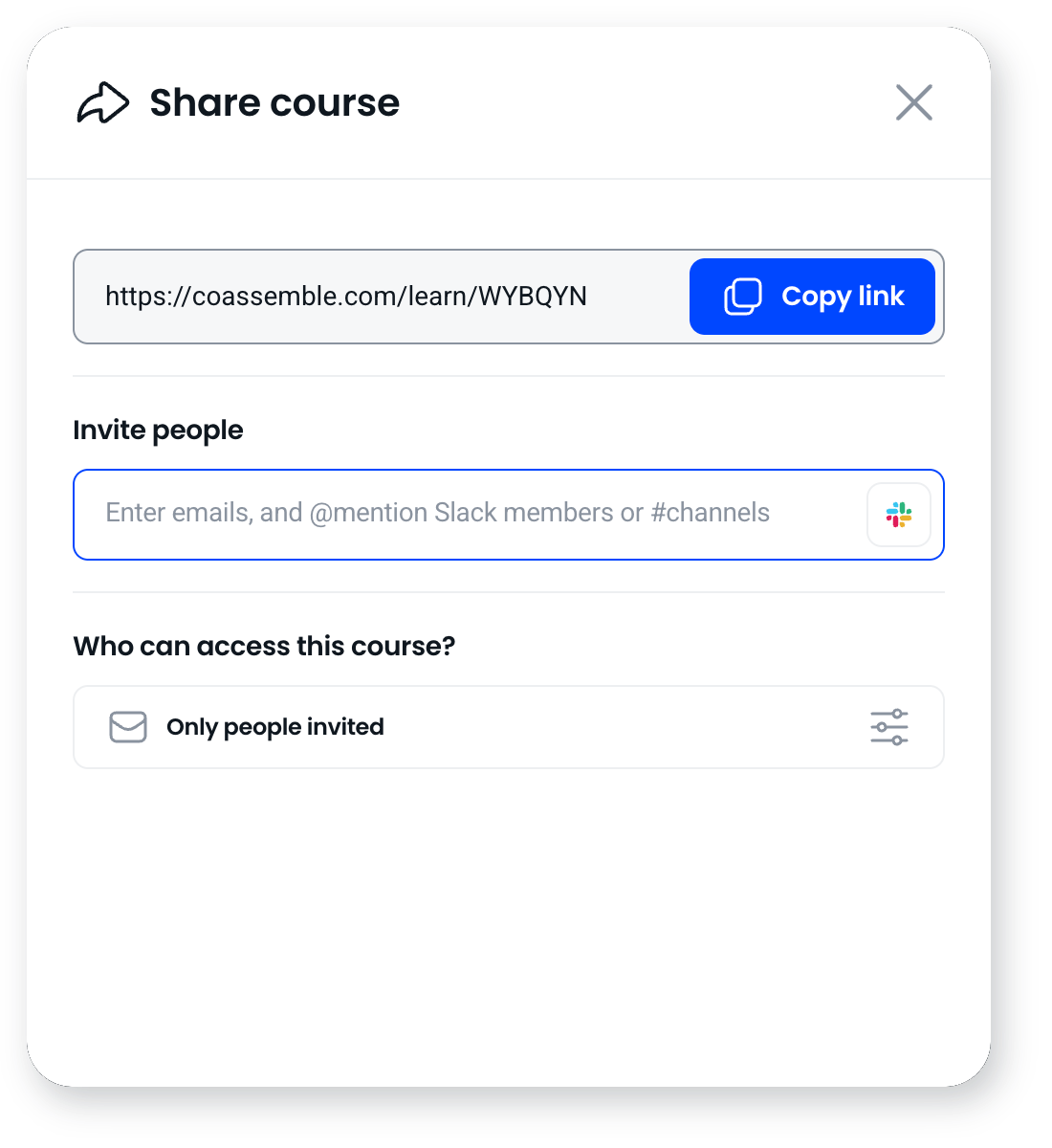
Send an email invitation
- Open the Share dialog from a course card or the top of the editor.
- Enter the email addresses of the people you want to invite.
- Tick the Send invitation message checkbox and add a custom message if you'd like to give context or instructions.
- Send the invitation. Recipients get an email with a direct link to the course. If the course is configured for open access, a prompt will appear asking whether to switch the course to Only people invited or to proceed without changing the access settings. Select your preferred choice.
Verify that the invited users are updated on the share panel to confirm successful delivery.
Frequently asked questions
Do I have to send an email invitation?
No. It's optional. You can click Copy Link to copy the unique URL of the course directly to your clipboard and share it manually instead.
Do recipients need a login?
No. The invitation includes a direct link, so they can open the course without creating an account.
Can I add my own message?
Yes. You can include a custom message in the invitation to give learners context or instructions.
Can I brand the email?
Not at this time. The email template, colours, and layout can't be customised.